
Documentation

IMPORTANT

This is the outdated SI-documentation which will be adapted soon. A huge part may be obsolete!

EB3.9 How To Change Social Button Position

How to Change Social Button Position

NOTE: This documentation is for EasyBlog 3.9.
NOTE: This feature is only available in EasyBlog 3.9.

Social buttons in EasyBlog are quite flexible. You can actually position then in four different position.

Accessing the social button settings page

  1. On your backend, click Components > EasyBlog > Settings. This will bring you to Settings configuration screen.
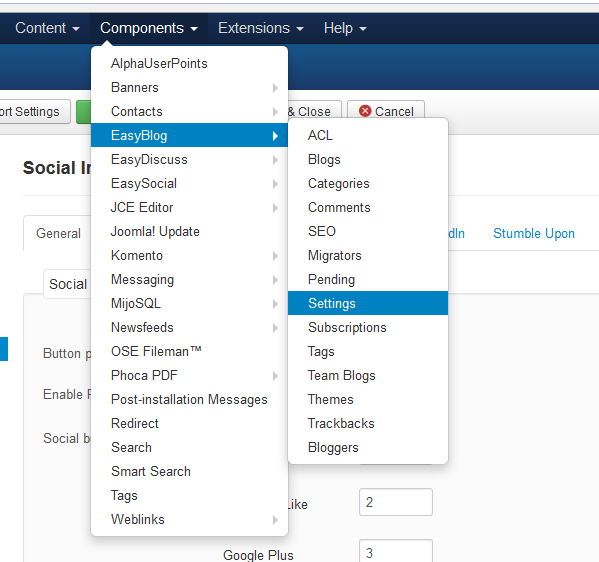
    Change Social Button Position

  2. Then click on the "Social Integration" tab and consequently the "General" tab.
    Change Social Button Position

  3. As you can see here there are four different position to choose from.
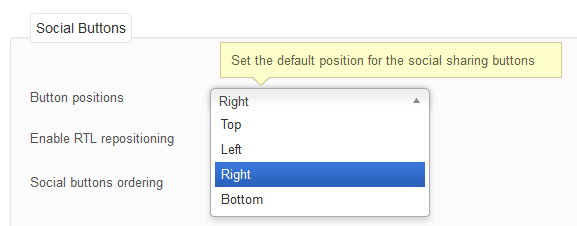
    Change Social Button Position

We use cookies
We use cookies on our website. Some of them are essential for the operation of the site, while others help us to improve this site and the user experience. You can decide whether you want to allow cookies or not. Please note that if you reject them, you may not be able to use all the functionalities of the site.